WORD MODULE
What is Microsoft Word?
Microsoft Word is a word-processing application developed by Microsoft that allows users to create, edit, format, and share text-based documents. It is commonly used for writing essays, research papers, reports, letters, and creative materials such as newsletters and brochures.
Why is Microsoft Word important for students?
Microsoft Word is an essential tool for academic work. It helps students organize their ideas, follow proper formatting standards, and present their outputs in a clear and professional manner. Learning how to use Word also improves productivity, supports collaboration through comments and track changes, and prepares students for future academic and workplace tasks where document creation is required.
WORD MODULE
What is Microsoft Word?
Microsoft Word is a word-processing application developed by Microsoft that allows users to create, edit, format, and share text-based documents. It is commonly used for writing essays, research papers, reports, letters, and creative materials such as newsletters and brochures.
Why is Microsoft Word important for students?
Microsoft Word is an essential tool for academic work. It helps students organize their ideas, follow proper formatting standards, and present their outputs in a clear and professional manner. Learning how to use Word also improves productivity, supports collaboration through comments and track changes, and prepares students for future academic and workplace tasks where document creation is required.
Learning Objectives
After completing this module, students will be able to:
✅ Understand the purpose and importance of Microsoft Word in academic work
✅ Create and format documents using appropriate fonts, spacing, and layouts
✅ Insert and manage elements such as images, tables, headers, footers, and page numbers
✅ Apply styles and formatting tools for clear and professional documents
✅ Use review tools like comments and Track Changes for collaboration
✅ Save and export documents in suitable formats such as .docx and .pdf
Learning Objectives
After completing this module, students will be able to:
✅ Understand the purpose and importance of Microsoft Word in academic work
✅ Create and format documents using appropriate fonts, spacing, and layouts
✅ Insert and manage elements such as images, tables, headers, footers, and page numbers
✅ Apply styles and formatting tools for clear and professional documents
✅ Use review tools like comments and Track Changes for collaboration
✅ Save and export documents in suitable formats such as .docx and .pdf
Key Features of
Microsoft Word
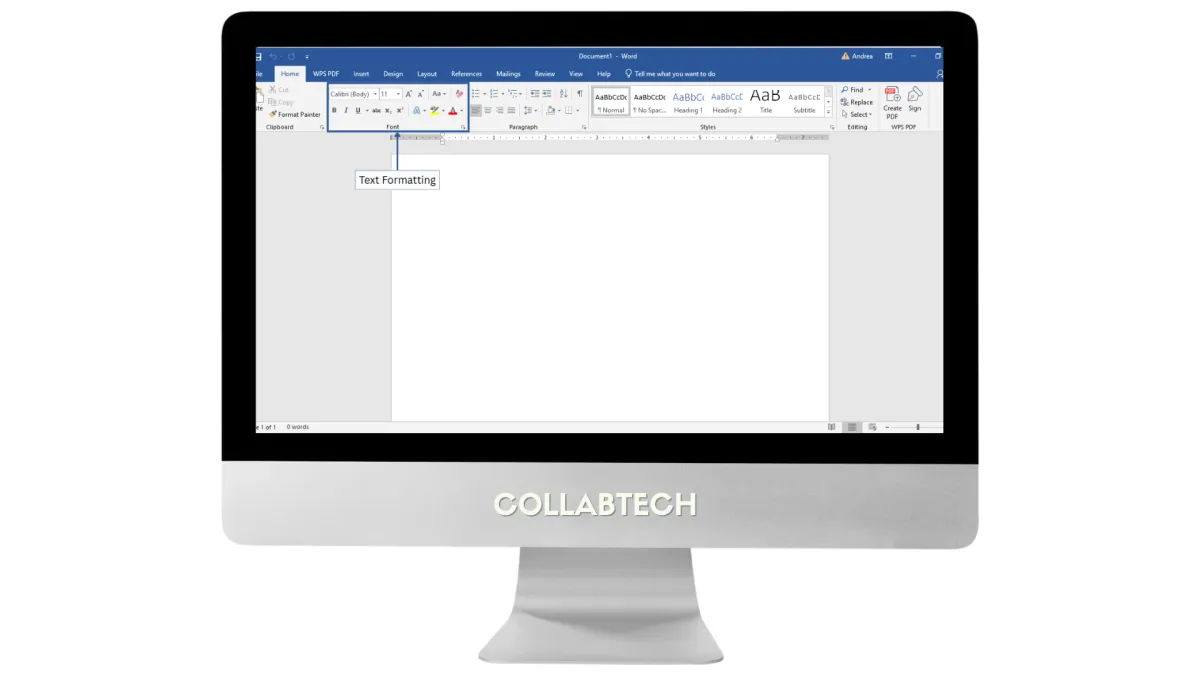
1. Text Formatting
Customize fonts, font sizes, and text styles such as bold, italics, and underline to improve readability and emphasis.
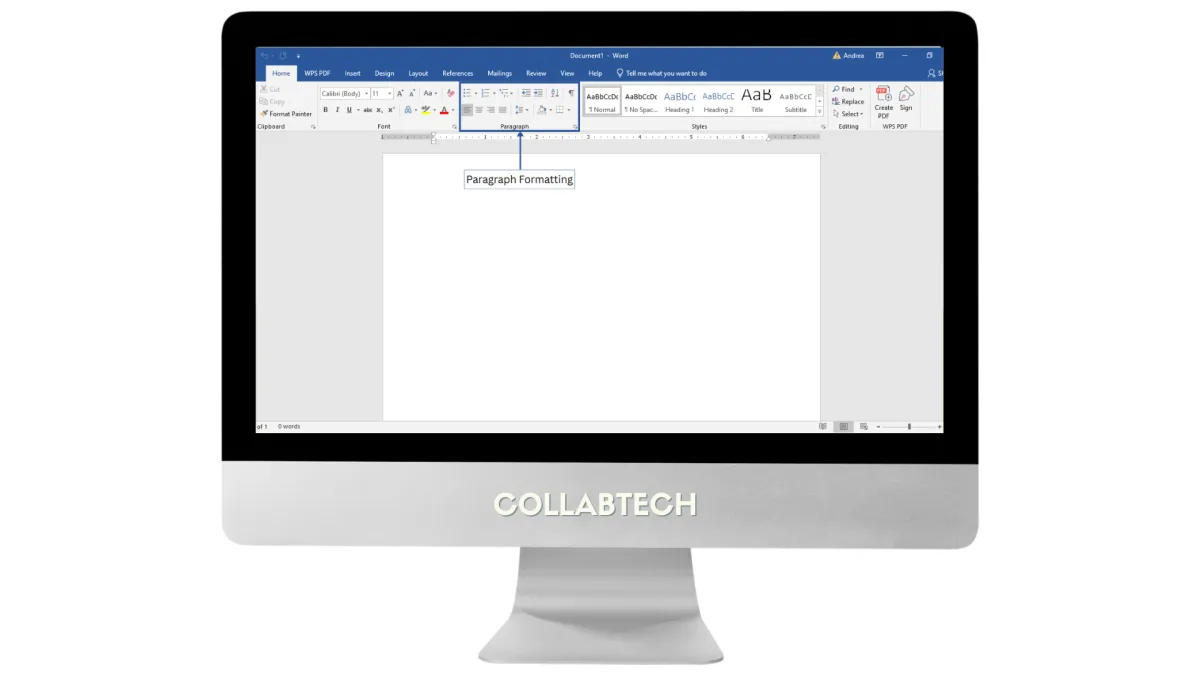
2. Paragraph Formatting
Adjust alignment (left, center, right, justified), spacing, and indentation to organize content neatly.
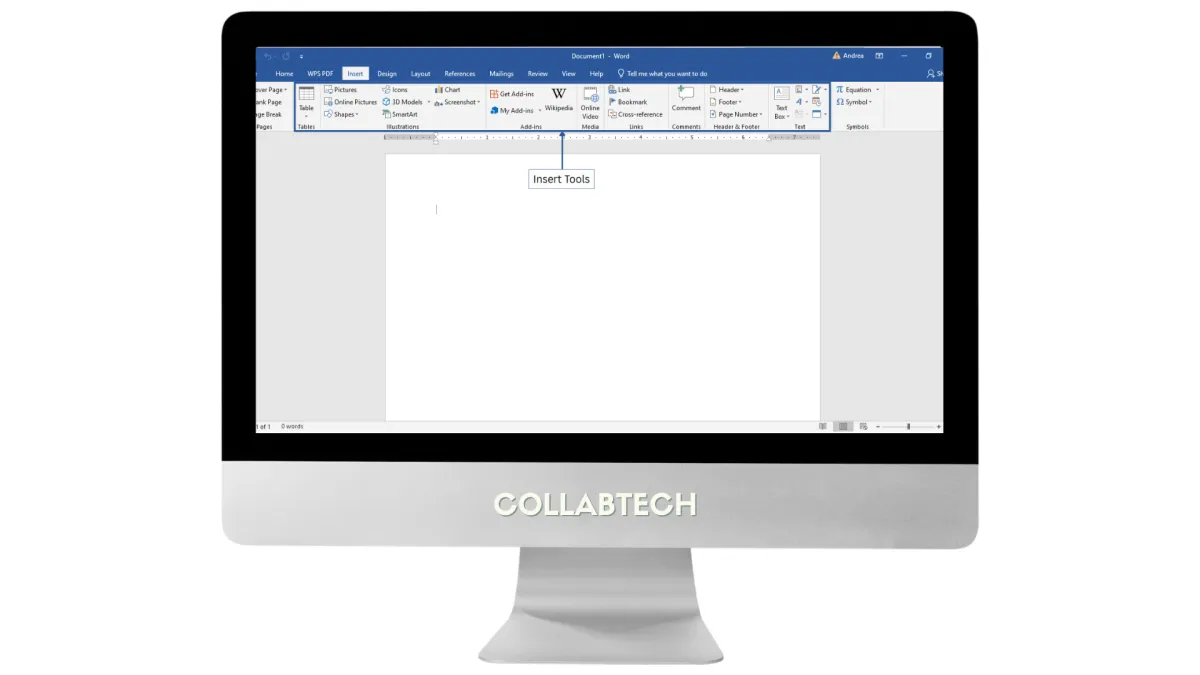
3. Insert Tools
Add images, tables, charts, shapes, and text boxes to enhance documents visually.
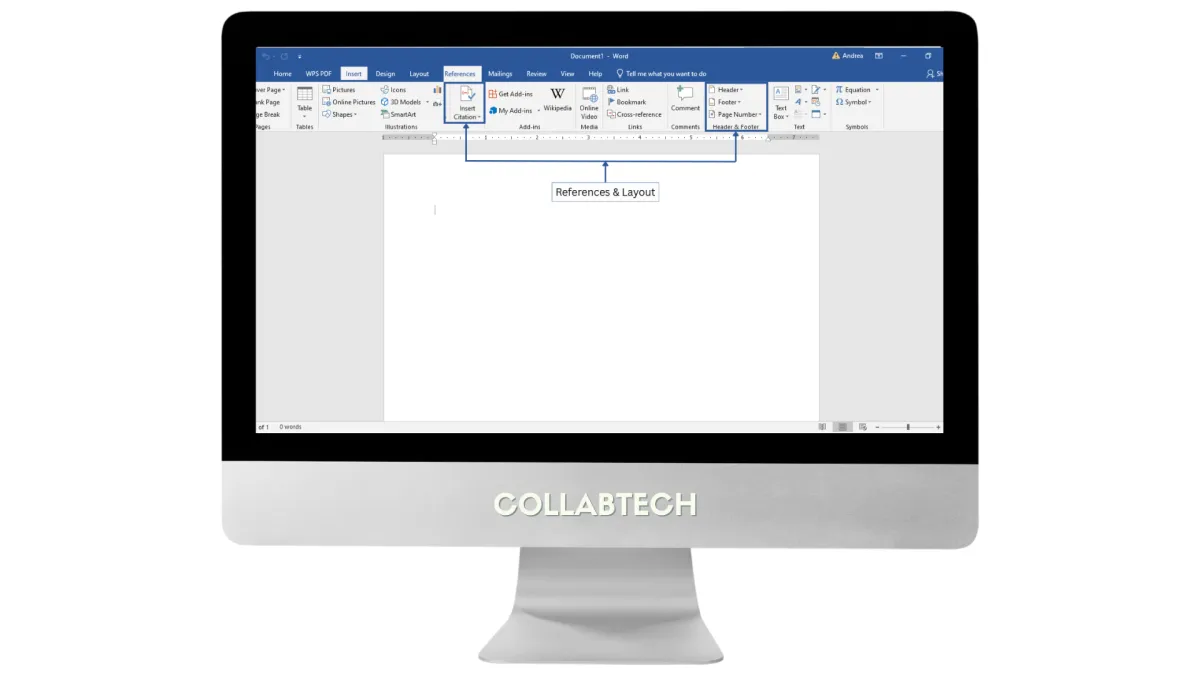
4. References & Layout
Insert page numbers, headers, footers, citations, and reference lists for academic and formal documents.
Key Features of
Microsoft Word
1. Text Formatting
Customize fonts, font sizes, and text styles such as bold, italics, and underline to improve readability and emphasis.
2. Paragraph Formatting
Adjust alignment (left, center, right, justified), spacing, and indentation to organize content neatly.
3. Insert Tools
Add images, tables, charts, shapes, and text boxes to enhance documents visually.
4. References & Layout
Insert page numbers, headers, footers, citations, and reference lists for academic and formal documents.
5. Review &
Collaboration Tools
Use comments and Track Changes to review documents and collaborate with classmates or group members.
Step-by-Step Guide: Creating a Basic Research Paper
Follow these steps to format a simple research paper using Microsoft Word:
1. Open Microsoft Word and select Blank Document.
2. Go to the Layout tab → click Margins → choose Normal (1 inch).
3. Set the font to Times New Roman with a font size of 12.
4. Open the Home tab → set Line Spacing to Double for better readability.
5. Insert a Title Page by going to Insert → Cover Page (or type your own title manually if required).
6. Add Page Numbers by selecting Insert → Page Number → Top of Page.
7. Use the References tab to insert citations and manage sources properly.
8. Save your document as .docx, then export a final copy as .pdf for submission.
Helpful Tips & Keyboard Shortcuts
Speed up your work by using these commonly used shortcuts:
• Ctrl + B / I / U – Bold, Italicize, or Underline text
• Ctrl + C / Ctrl + V – Copy and Paste
• Ctrl + Z – Undo the last action
• Ctrl + F – Quickly find specific words or phrases
• Use Styles (Home → Styles) to format headings and subheadings consistently throughout the document

Common Mistakes & How to Fix Them
• Problem: The document looks different on another computer
Fix: Save and submit the file as a PDF to preserve formatting.
• Problem: Text was accidentally deleted
Fix: Press Ctrl + Z immediately to undo the action.
Step-by-Step Guide: Creating a Basic Research Paper
Follow these steps to format a simple research paper using Microsoft Word:
1. Open Microsoft Word and select Blank Document.
2. Go to the Layout tab → click Margins → choose Normal (1 inch).
3. Set the font to Times New Roman with a font size of 12.
4. Open the Home tab → set Line Spacing to Double for better readability.
5. Insert a Title Page by going to Insert → Cover Page (or type your own title manually if required).
6. Add Page Numbers by selecting Insert → Page Number → Top of Page.
7. Use the References tab to insert citations and manage sources properly.
8. Save your document as .docx, then export a final copy as .pdf for submission.
Helpful Tips & Keyboard Shortcuts
Speed up your work by using these commonly used shortcuts:
• Ctrl + B / I / U – Bold, Italicize, or Underline text
• Ctrl + C / Ctrl + V – Copy and Paste
• Ctrl + Z – Undo the last action
• Ctrl + F – Quickly find specific words or phrases
• Use Styles (Home → Styles) to format headings and subheadings consistently throughout the document
Common Mistakes & How to Fix Them