EXCEL MODULE
What is Microsoft Excel?
Microsoft Excel is a spreadsheet program developed by Microsoft that is used to store, organize, calculate, and analyze data. It allows users to work with numbers and text in tables, making it ideal for budgets, lists, charts, reports, and data tracking.
Why is Microsoft Excel important for students?
Excel helps students manage information accurately and efficiently. It teaches logical thinking, basic data analysis, and problem-solving skills. Learning Excel is valuable not only for school tasks but also for future careers in business, technology, finance, and many other fields where data handling is essential
EXCEL MODULE
What is Microsoft Excel?
Microsoft Excel is a spreadsheet program developed by Microsoft that is used to store, organize, calculate, and analyze data. It allows users to work with numbers and text in tables, making it ideal for budgets, lists, charts, reports, and data tracking.
Why is Microsoft Excel important for students?
Excel helps students manage information accurately and efficiently. It teaches logical thinking, basic data analysis, and problem-solving skills. Learning Excel is valuable not only for school tasks but also for future careers in business, technology, finance, and many other fields where data handling is essential
Learning Objectives
After completing this module, students will be able to:
✅ Understand the basic structure of Microsoft Excel, including workbooks, worksheets, rows, columns, and cells
✅ Enter, format, and organize data accurately
✅ Use basic formulas and functions for calculations and analysis
✅ Apply tools such as sorting, filtering, AutoFill, and Freeze Panes
✅ Create charts to visualize data clearly
✅ Manage files efficiently using templates and organized layouts

Learning Objectives
After completing this module, students will be able to:
✅ Understand the basic structure of Microsoft Excel, including workbooks, worksheets, rows, columns, and cells
✅ Enter, format, and organize data accurately
✅ Use basic formulas and functions for calculations and analysis
✅ Apply tools such as sorting, filtering, AutoFill, and Freeze Panes
✅ Create charts to visualize data clearly
✅ Manage files efficiently using templates and organized layouts
Understanding The Excel Workspace
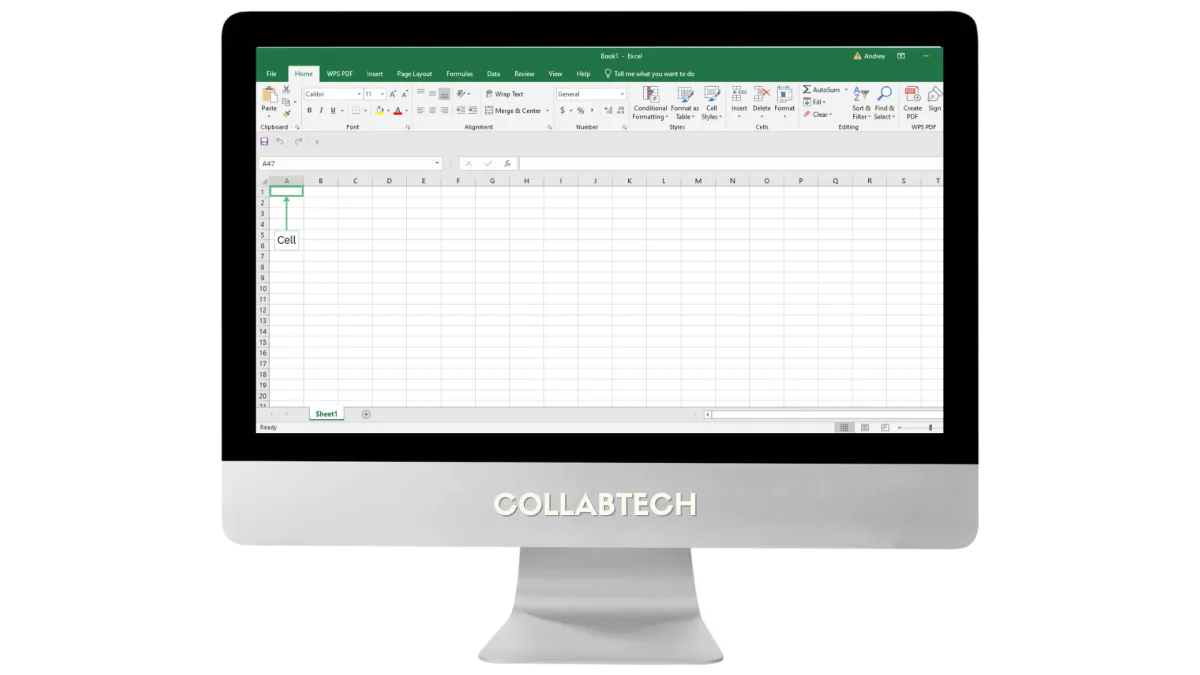
1. Cell
A small box where you enter text, numbers, or formulas.
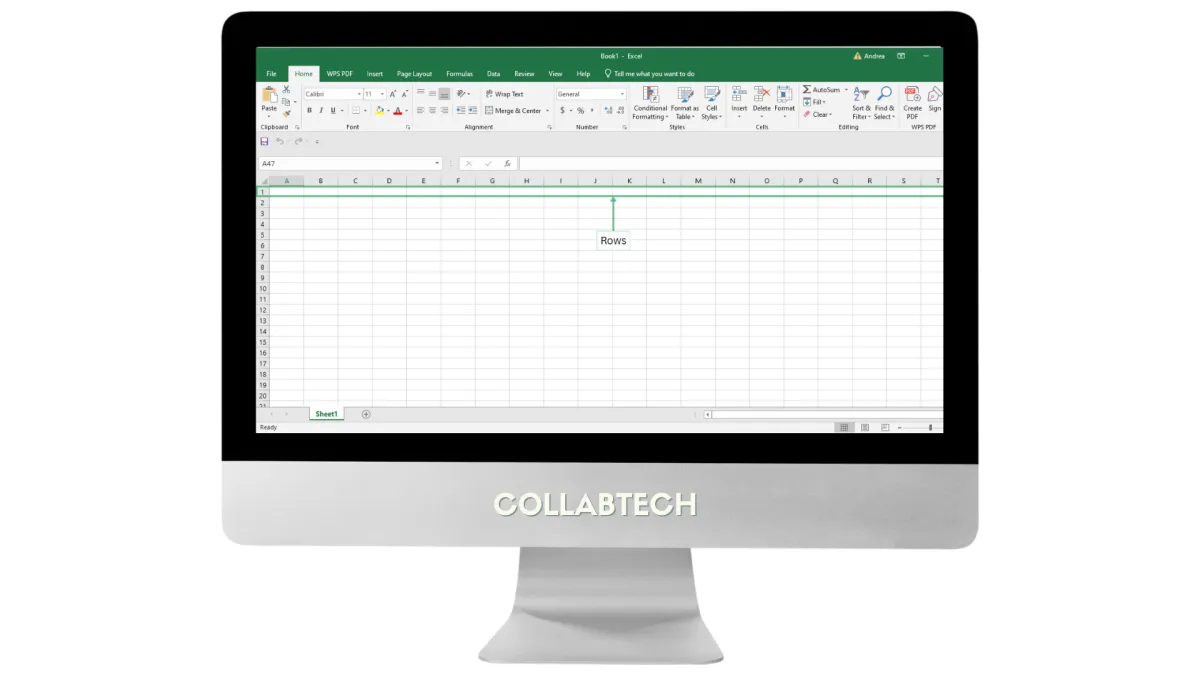
2. Rows
Horizontal lines labeled with numbers (1, 2, 3…).
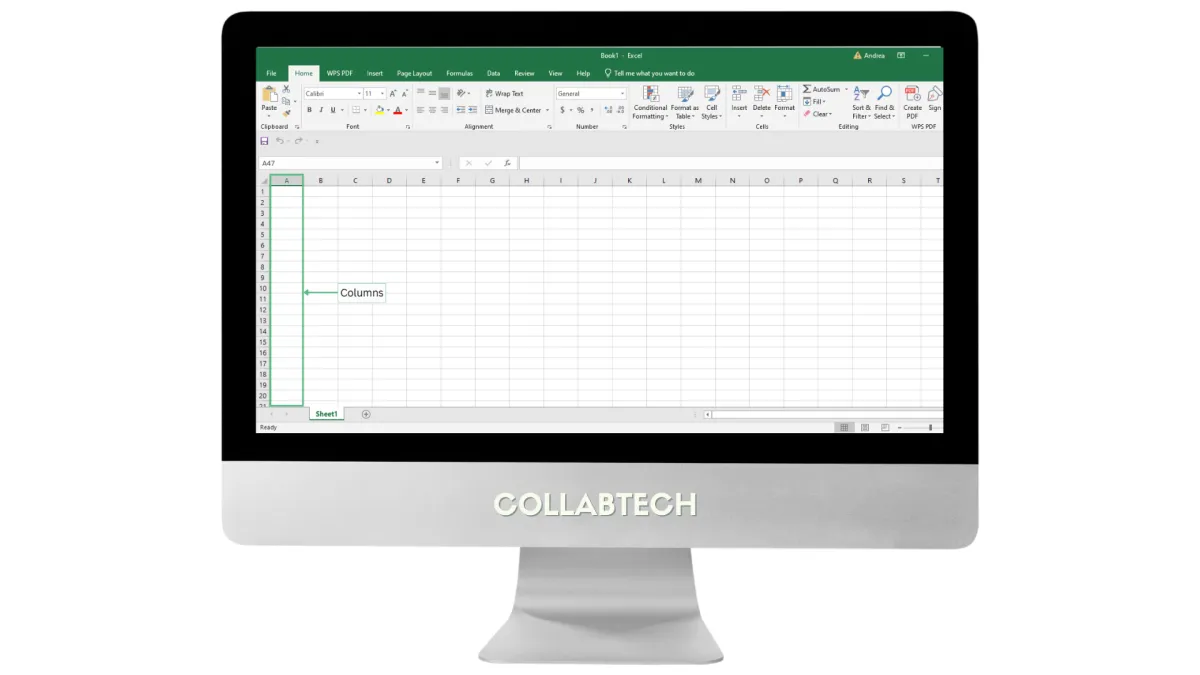
3. Columns
Vertical lines labeled with letters (A, B, C…).
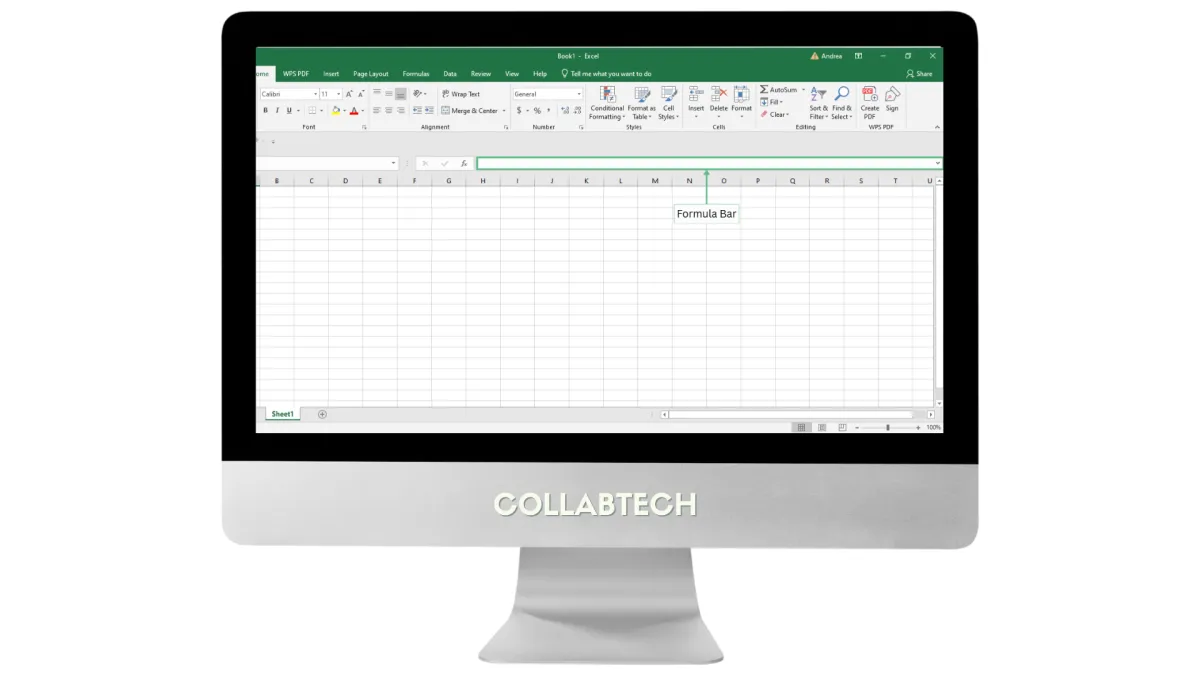
4. Formula Bar
Displays or allows editing of the content inside the selected cell.
Understanding The Excel Workspace
1. Cell
A small box where you enter text, numbers, or formulas.
2. Rows
Horizontal lines labeled with numbers (1, 2, 3…).
3. Columns
Vertical lines labeled with letters (A, B, C…).
4. Formula Bar
Displays or allows editing of the content inside the selected cell.
Getting Started with Excel
✔️ Opening Excel
Open Excel from the Start Menu or open an existing .xlsx file.
✔️ Workbook
The entire Excel file that contains one or more worksheets.
✔️ Worksheet
A single sheet (page or tab) inside a workbook where data is entered.
✔️ Ribbon
The toolbar at the top of the window includes tabs such as Home, Insert, Formulas, and Data.

Basic Formulas and Functions
Formulas help Excel perform calculations automatically:
✔️ Addition: =A1+A2
✔️ Subtraction: =A1-A2
✔️ Multiplication: =A1*A2
✔️ Division: =A2/A1
✔️ Total (SUM):=SUM(A1:A10)
Common built-in functions:
✔️ =AVERAGE(B1:B10) – Finds the average
✔️ =MAX() – Finds the highest value
✔️ =MIN() – Finds the lowest value
Formatting Data
=AVERAGE(B1:B10) – Finds the average
=MAX() – Finds the highest value
=MIN() – Finds the lowest value
✔️ Bold, italicize, or underline text
✔️ Change fonts, font sizes, and colors
✔️ Resize column width by dragging the edge of the column letter
✔️ Add borders and shading for better readability
Keyboard Shortcuts for Faster Work
✔️ Ctrl + C / Ctrl + V – Copy and Paste
✔️ Ctrl + Z / Ctrl + Y – Undo and Redo
✔️ Ctrl + A – Select all
✔️ Ctrl + S – Save quickly
✔️ Ctrl + F / Ctrl + H – Find or Find and Replace
Quick formatting shortcuts:
✔️ Ctrl + B / Ctrl + I / Ctrl + U – Bold, Italic, Underline
✔️ Alt + H + H – Open Fill Color menu

AutoFill Feature
AutoFill helps you save time when entering repeating data:
1. Type a value (numbers, dates, or days).
2. Drag the small square at the bottom-right corner of the cell (Fill Handle).
3. Excel automatically fills the next cells.

Getting Started with Excel
✔️ Opening Excel
Open Excel from the Start Menu or open an existing .xlsx file.
✔️ Workbook
The entire Excel file that contains one or more worksheets.
✔️ Worksheet
A single sheet (page or tab) inside a workbook where data is entered.
✔️ Ribbon
The toolbar at the top of the window includes tabs such as Home, Insert, Formulas, and Data.
Basic Formulas and Functions
Formulas help Excel perform calculations automatically:
✔️ Addition: =A1+A2
✔️ Subtraction: =A1-A2
✔️ Multiplication: =A1*A2
✔️ Division: =A2/A1
✔️ Total (SUM):=SUM(A1:A10)
Common built-in functions:
✔️ =AVERAGE(B1:B10) – Finds the average
✔️ =MAX() – Finds the highest value
✔️ =MIN() – Finds the lowest value
Formatting Data
=AVERAGE(B1:B10) – Finds the average
=MAX() – Finds the highest value
=MIN() – Finds the lowest value
✔️ Bold, italicize, or underline text
✔️ Change fonts, font sizes, and colors
✔️ Resize column width by dragging the edge of the column letter
✔️ Add borders and shading for better readability
Keyboard Shortcuts for Faster Work
✔️ Ctrl + C / Ctrl + V – Copy and Paste
✔️ Ctrl + Z / Ctrl + Y – Undo and Redo
✔️ Ctrl + A – Select all
✔️ Ctrl + S – Save quickly
✔️ Ctrl + F / Ctrl + H – Find or Find and Replace
Quick formatting shortcuts:
✔️ Ctrl + B / Ctrl + I / Ctrl + U – Bold, Italic, Underline
✔️ Alt + H + H – Open Fill Color menu
AutoFill Feature
AutoFill helps you save time when entering repeating data:
1. Type a value (numbers, dates, or days).
2. Drag the small square at the bottom-right corner of the cell (Fill Handle).
3. Excel automatically fills the next cells.
Mini-Activity: Apply What You Learned
Create a simple Excel worksheet that demonstrates basic data entry, formatting, and formula usage.
Your worksheet must include the following:
• A table with at least 3 columns and 5 rows of data
• Proper headings formatted in bold
• At least two basic formulas (e.g., SUM, AVERAGE, MAX, or MIN)
• One AutoFill example (numbers, dates, or days)
• At least one chart that represents the data clearly
• Clean alignment and formatting (borders, column width, or shading)
Submission Instructions:
• Save the file as .xlsx
• Export and submit a final copy as .pdf
This activity helps you practice organizing data, performing basic calculations, and presenting information clearly using Microsoft Excel.
Mini-Activity: Apply What You Learned
Create a simple Excel worksheet that demonstrates basic data entry, formatting, and formula usage.
Your worksheet must include the following:
• A table with at least 3 columns and 5 rows of data
• Proper headings formatted in bold
• At least two basic formulas (e.g., SUM, AVERAGE, MAX, or MIN)
• One AutoFill example (numbers, dates, or days)
• At least one chart that represents the data clearly
• Clean alignment and formatting (borders, column width, or shading)
Submission Instructions:
• Save the file as .xlsx
• Export and submit a final copy as .pdf
This activity helps you practice organizing data, performing basic calculations, and presenting information clearly using Microsoft Excel.
Module Summary
The Microsoft Excel module introduces students to basic spreadsheet concepts and data-handling skills. It focuses on organizing information, applying formatting, using formulas and functions, and creating charts for data visualization. Students also learn time-saving tools such as AutoFill, sorting, and filtering. By the end of the module, learners can manage and analyze data efficiently, making Excel a practical tool for academic work and real-world problem solving.