CANVA MODULE
What is Canva?
Canva is a web-based graphic design platform that allows users to create visual content such as posters, presentations, infographics, social media graphics, videos, and documents using a simple drag-and-drop interface.
Why is Canva important for students?
Canva helps students turn ideas into clear and engaging visuals. It supports creativity, communication, and collaboration—skills needed in school, online learning, and future careers. With templates and smart tools, Canva allows students to create professional-looking designs even without prior design experience.
CANVA MODULE
What is Canva?
Canva is a web-based graphic design platform that allows users to create visual content such as posters, presentations, infographics, social media graphics, videos, and documents using a simple drag-and-drop interface.
Why is Canva important for students?
Canva helps students turn ideas into clear and engaging visuals. It supports creativity, communication, and collaboration—skills needed in school, online learning, and future careers. With templates and smart tools, Canva allows students to create professional-looking designs even without prior design experience.
Learning Objectives
After completing this module, students will be able to:
✅ Understand basic design principles using Canva
✅ Create visually balanced and readable designs
✅ Use Canva tools efficiently to save time
✅ Export designs in the correct format
✅ Collaborate with classmates using shared design tools
Learning Objectives
After completing this module, students will be able to:
✅ Understand basic design principles using Canva
✅ Create visually balanced and readable designs
✅ Use Canva tools efficiently to save time
✅ Export designs in the correct format
✅ Collaborate with classmates using shared design tools
Understanding The
Canva Workspace
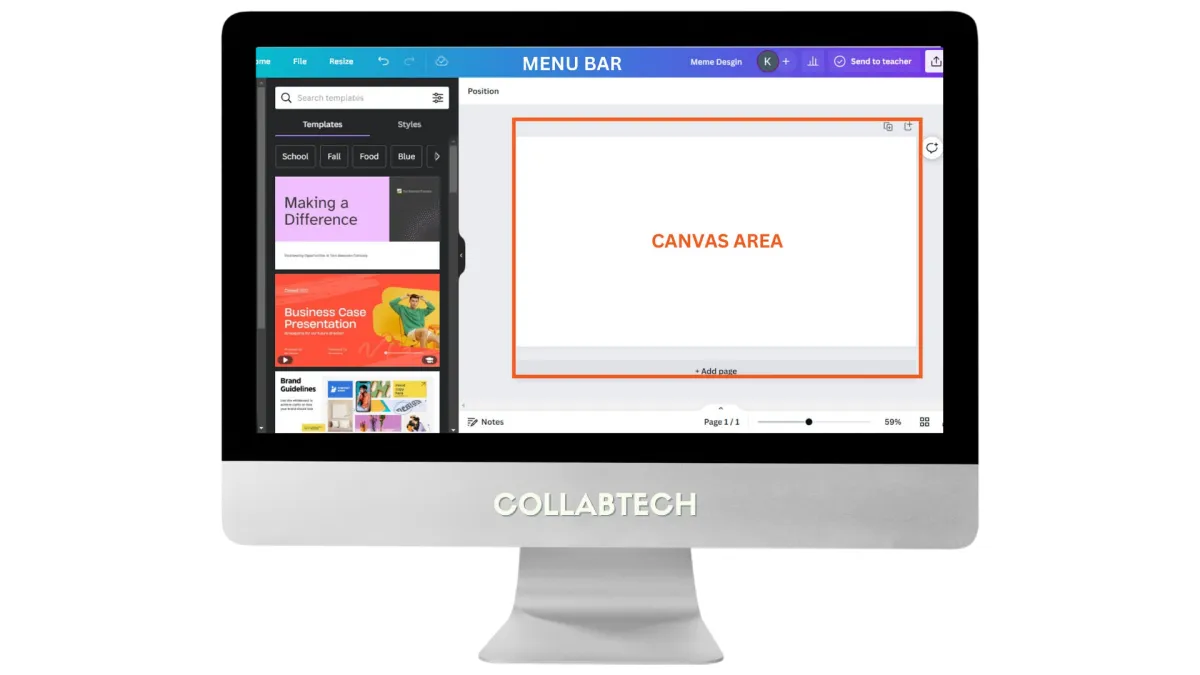
1. Canvas Area
The main workspace where you design
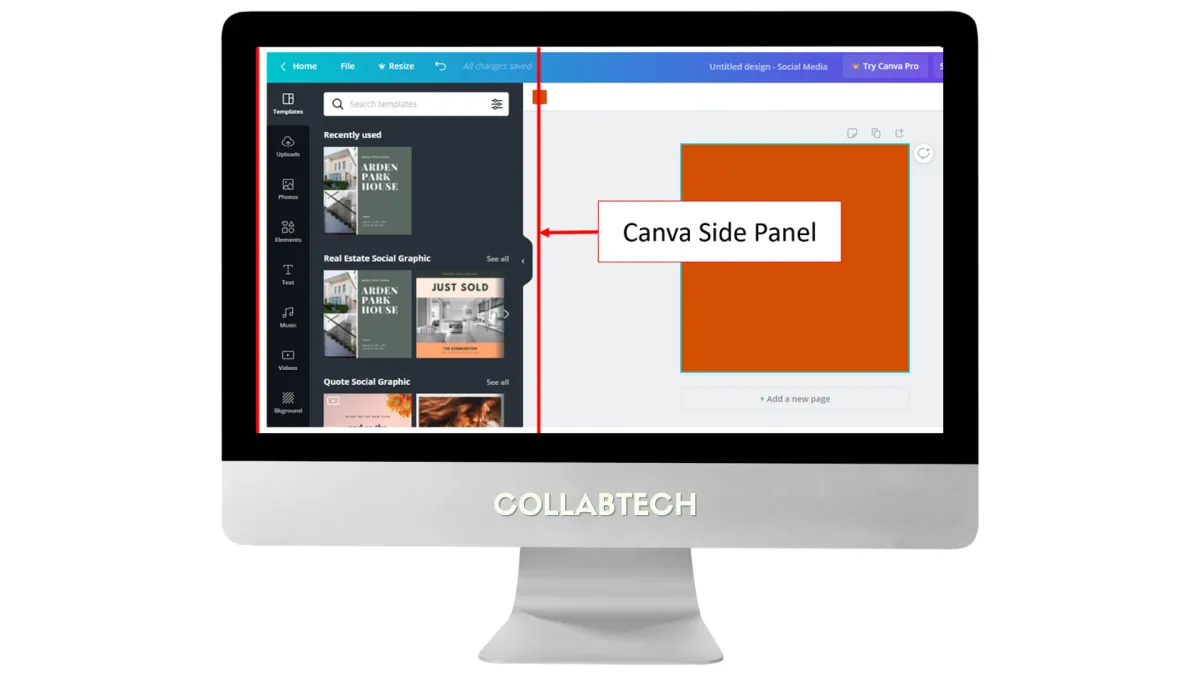
2. Sidebar Panel
Contains templates, elements, text, uploads, and apps
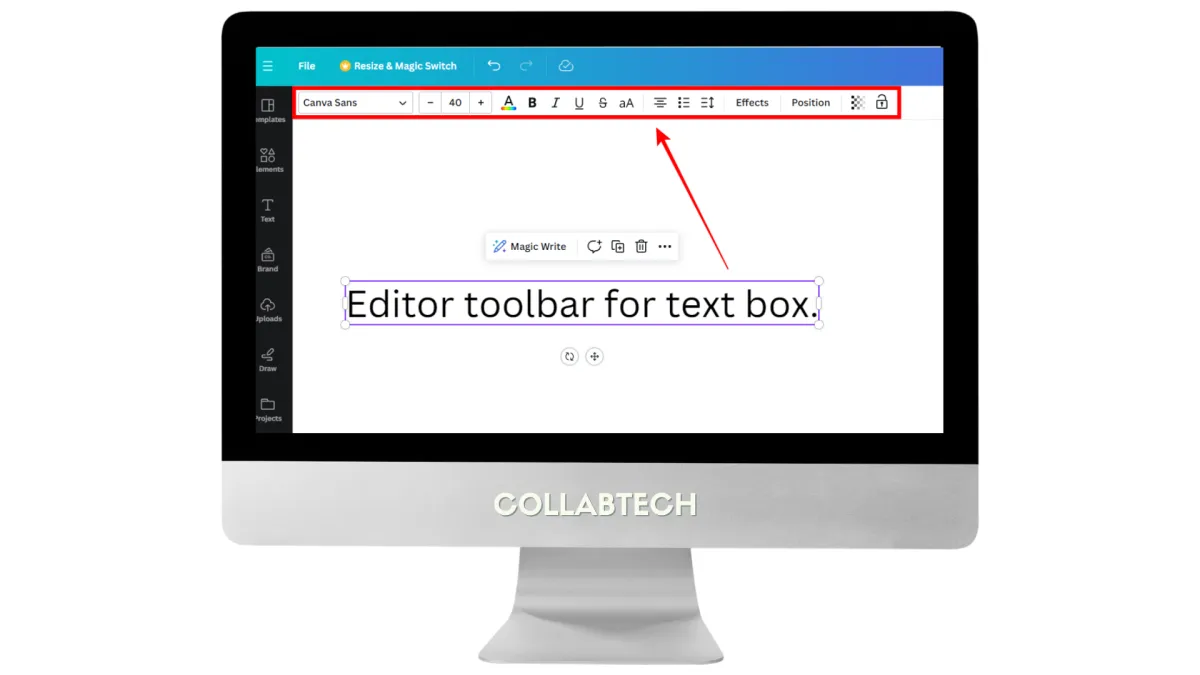
3. Top Toolbar
Provides formatting tools such as font, color, position, and effects
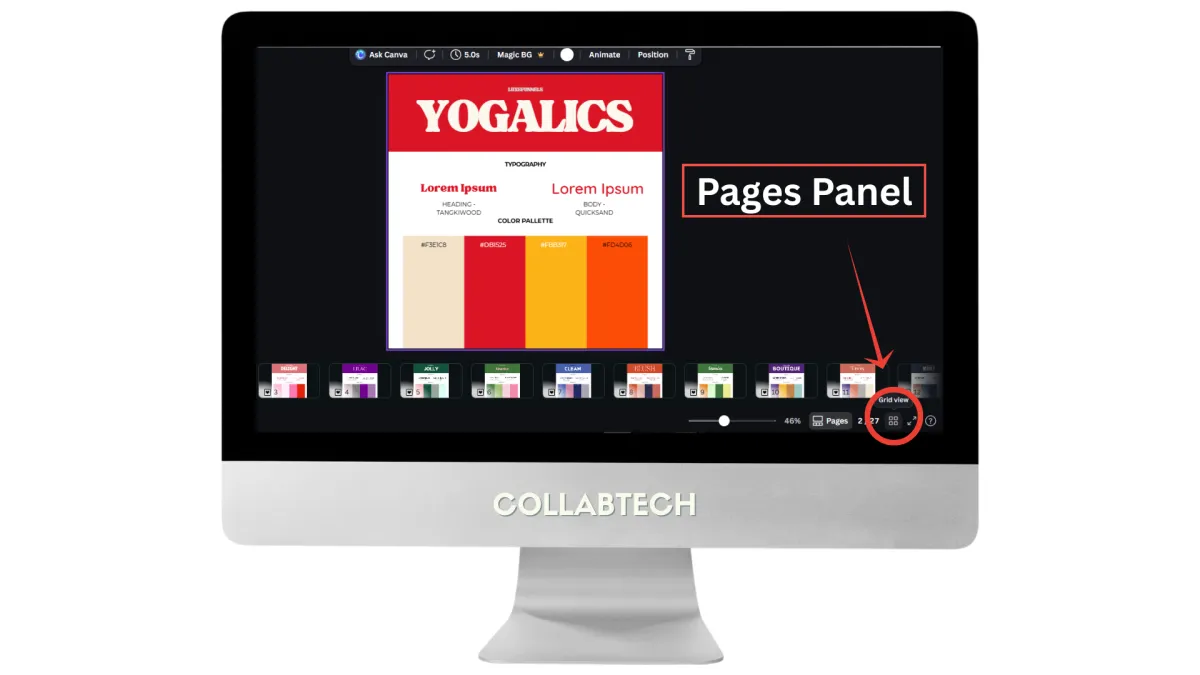
4. Pages Panel
Manage multiple pages or slides in one design
Understanding The Canva Workspace
1. Canvas Area
The main workspace where you design
2. Sidebar Panel
Contains templates, elements, text, uploads, and apps
3. Top Toolbar
Provides formatting tools such as font, color, position, and effects
4. Pages Panel
Manage multiple pages or slides in one design
Core Design Principles In Canva
Layout & Alignment
✔️ Use Grids and Frames to align elements properly
✔️ Use the Position Tool to center and space items evenly
✔️ Keep margins clear to avoid overcrowding the design
Typography
✔️ Limit designs to 2–3 fonts for consistency
✔️ Adjust letter spacing and line spacing for better readability
✔️Use font hierarchy (title, subtitle, body text) to guide viewers
Color and Visual Balance
✔️ Use the Color Picker to match colors from photos or logos
✔️ Stick to a consistent color palette
✔️ Apply transparency and gradients for smooth transitions
✔️ Use white space to keep designs clean
Core Design Principles In Canva
Layout & Alignment
✔️ Use Grids and Frames to align elements properly
✔️ Use the Position Tool to center and space items evenly
✔️ Keep margins clear to avoid overcrowding the design
Typography
✔️ Limit designs to 2–3 fonts for consistency
✔️ Adjust letter spacing and line spacing for better readability
✔️Use font hierarchy (title, subtitle, body text) to guide viewers
Color and Visual Balance
✔️ Use the Color Picker to match colors from photos or logos
✔️ Stick to a consistent color palette
✔️ Apply transparency and gradients for smooth transitions
✔️ Use white space to keep designs clean
Essential Canva Tools and Features
Design Enhancement Tools
✔️ Drop Shadows & Blur Effects – Add depth and focus
✔️ Duotone Filters – Apply artistic photo effects
✔️ Gradient Elements – Create modern visual transitions
✔️ Smartmockups – Preview designs on real-world products
Image & Element Control
✔️ Use Frames to crop images creatively
✔️ Rotate elements using the rotate handle
✔️ Use consistent icon styles for visual harmony
Efficient Workflow and Time-Saving Techniques
✔️ Templates – Start with pre-designed layouts and customize
✔️ Duplicate Pages (Ctrl + D) – Reuse designs quickly
✔️ Group Elements (Ctrl + G) – Move items together easily
✔️ Lock Elements – Prevent accidental edits
✔️ Magic Resize (Pro) – Resize designs for different platforms
✔️ Bulk Create – Generate multiple designs using spreadsheet data
✔️ Auto-Align Text – Maintain symmetry across layouts
File Management & Organization
✔️ Create folders based on subject, project, or purpose
✔️ Name design files clearly for easy retrieval
✔️Save frequently used assets to Starred
✔️ Use design Versions to revert to earlier edits

Exporting & Publishing Designs
Choosing the Right File Format
✔️ JPG – Web and online sharing
✔️ PNG – Transparent backgrounds
✔️ PDF – Printing and formal submissions
✔️ MP4 – Animated presentations or videos
✔️ GIF – Short looping animations
Additional Export Tips:
✔️ Enable Transparent Background (Pro) for logos
✔️ Use Small File Size for faster web uploads
✔️ Download specific pages instead of the entire design
✔️ Preview mobile view before exporting vertical designs
Branding Basics Using Canva
✔️Use Brand Kit (Pro) to store logos, colors, and fonts
✔️Maintain consistent layouts and color palettes
✔️Upload custom fonts for brand identity
✔️Create branded templates for repeated use
✔️Add logos consistently (e.g., bottom-right placement)
✔️Develop a simple style guide inside Canva
Essential Canva Tools and Features
Design Enhancement Tools
✔️ Drop Shadows & Blur Effects – Add depth and focus
✔️ Duotone Filters – Apply artistic photo effects
✔️ Gradient Elements – Create modern visual transitions
✔️ Smartmockups – Preview designs on real-world products
Image & Element Control
✔️ Use Frames to crop images creatively
✔️ Rotate elements using the rotate handle
✔️ Use consistent icon styles for visual harmony
Efficient Workflow and Time-Saving Techniques
✔️ Templates – Start with pre-designed layouts and customize
✔️ Duplicate Pages (Ctrl + D) – Reuse designs quickly
✔️ Group Elements (Ctrl + G) – Move items together easily
✔️ Lock Elements – Prevent accidental edits
✔️ Magic Resize (Pro) – Resize designs for different platforms
✔️ Bulk Create – Generate multiple designs using spreadsheet data
✔️ Auto-Align Text – Maintain symmetry across layouts
File Management & Organization
✔️ Create folders based on subject, project, or purpose
✔️ Name design files clearly for easy retrieval
✔️Save frequently used assets to Starred
✔️ Use design Versions to revert to earlier edits
Exporting & Publishing Designs
Choosing the Right File Format
✔️ JPG – Web and online sharing
✔️ PNG – Transparent backgrounds
✔️ PDF – Printing and formal submissions
✔️ MP4 – Animated presentations or videos
✔️ GIF – Short looping animations
Additional Export Tips
✔️ Enable Transparent Background (Pro) for logos
✔️ Use Small File Size for faster web uploads
✔️ Download specific pages instead of the entire design
✔️ Preview mobile view before exporting vertical designs
Branding Basics Using Canva